
What is collaborative CPD? Well, it’s a way of tagging your crewmates/colleagues in specific CPD entries such as reflections on jobs, and then asking your crewmates/colleagues to answer some questions and provide some feedback on your communication and clinical management. You can then use this feedback as prompts to write – or expand – your reflective entries. Or you can export their feedback and add it to your portfolio as evidence of feedback. And your crewmates/colleagues can sync the shared CPD to their portfolios to evidence their own feedback or to prompt or expand on their own reflections. Watch the video for more:
Tag: nqp
-
Video Guide/Walkthrough to Article 999’s CPD Templates, V1.6
Please note: These videos demonstrate printing/exporting the NQP portfolio. However, all portfolios (post-NQP/Non HCPC/NQP) print in the same way. There is simply more to print in the NQP version. Non NQPs can safely skip parts about printing the NQP learning outcomes.
Please also note: The settings in the templates are such to enable printing to work properly and to ensure your NQP learning outcomes are in the correct format. Please do not change the settings, unless I have specifically advised that you can. NQPs, please print your learning outcomes from the given table to ensure your portfolio is accepted. If you are unsure, please do reach out.
For more information, please see the CPD Templates main page, and the Help File.
The full walkthrough:
00:00 Intro
03:40 Logging CPD
12:50 Editing the Cover Page
14:00 Editing the Summary of Practice History (and checking the word count)
14:47 Adding more category/tag options for your CPD log – using the ‘check all fields’ tab (which is *not* for printing.
17:00 Adding/Editing Development Goals 19: 40 Editing the Statement of How I Have Met the Standards (and checking the word count)
20:10 Checking, and a second way of logging the NQP Learning Outcomes. Searching for met/not met outcomes as well. Use of the signature(s) column(s).
23:00 Checking, and a second way of logging HCPC Development Goals.
24:40 Printing/Exporting
How to print/export the:
25:10 Cover Page – Using the extensions tab
28:20 Summary of Practice History – Using the extensions tab
29:14 Dated List of CPD Activities – Checking the fields & word count before printing
32:09 Dated List of CPD Activities – Printing/Exporting the CPD Log
37:40 Evidence List 39:40 Reflections – Using the Extensions tab
41:25 Skills
42:00 Development Goals
43:00 Statement of How I Have Met the Standards
44:01 NQP Learning Outcomes
45:20 HCPC Standards of Proficiency
46:20 Merging the PDFs, Adding Page Numbers, Editing
52:06 NQPs or anyone wanting signatures – How to get your portfolio signed electronically.
54:00 Final bits of advice, references, and support options.The printing/exporting instructions only:
How to print/export the:
00:00 Cover Page
03:38 Summary of Practice History
04:38 Dated List of CPD Activities – Checking the fields & word count before printing
07:12 Dated List of CPD Activities – Printing/Exporting the CPD Log
12:45 Evidence List
15:00 Reflections
16:50 Skills
17:25 Development Goals
18:28 Statement of How I Have Met the Standards
19:39 NQP Learning Outcomes
20:45 HCPC Standards of Proficiency
22:30 Merging the PDFs, Adding Page Numbers, Editing
27:20 NQPs or anyone wanting signatures – How to get your portfolio signed electronically.
30:00 Final bits of advice, references, and how to seek support. -
HCPC Portfolio Help File
[tabby title=”Intro to the Help Folder”]
This help folder is a guide to help you create a CPD portfolio that is ready to submit to the HCPC. Pair this with Article 999’s CPD templates for everyone from first aiders/FREC-qualified staff/EMTs through to NQPs and post-NQPs. These are available from this link.
You will need to set up your own free Airtable account. Then, click ‘copy base’ to add the entire template to your own account. You can then click on the tables and add or edit it as you desire.
Those of you following Article 999 in recent months will be aware of the developments in the CPD templates, which are now for everyone from first aiders/FREC/EMT-level staff through to NQPs and post-NQPs.
Previously at v1.5, new updates have just been launched to move these templates on to v1.6. Here is a summary of the key changes.
Previously, you were asked to have a look at a OneNote ‘help file’ (originally called the portfolio). The latest updates to the Airtable templates mean the file in its previous format is no longer needed, so I have copied the majority of the information here for ease. Simply use this for reference to ensure you understand the process, and to check you have everything you need before you submit.
In this help folder, each tab contains referenced guidance on what is required.
How do I use the help folder?
There are 4 numbered sections that each contain advice for you to read: 500 word summary of practice, dated list of CPD activities, 1,500 word supporting statement, and supporting evidence.
These sections form a template that you are encouraged to copy to meet the HCPC audits. You could copy the layout into your own (empty) folder and fill in the pages if you’d like to customise it all, or fill out the sections in your Airtable portfolio.
The second-last tab contains links to the above documents. Use them to review your folder and check that you meet the criteria.
When you are ready to submit, print/export directly from Airtable (choose the ‘save to pdf’ printer option if you don’t need a paper copy), then use Adobe’s free online merger tool.
What if I need help?
That’s absolutely fine. Further information, video guides, and an appointment booker is available from the Article 999 website here: https://article999.co.uk/cpd-templates-for-paramedics-and-nqps/
What if I’m using an older version of the templates?
Please get in touch with a screenshot of your CPD template number or the date you first started using it. I’ll personally update your version to the latest one.
References
This help folder has been produced with reference to the following:
https://library.myebook.com/MyeBookEM/college-of-paramedics-1/2984/
[tabby title=”1. 500 Word Summary of Practice History”]
You are expected to write a 500 word summary of your practice history – i.e. what your role is and what you come across within that role. You can use your official job description for ideas, but think along the lines of:
- Patient groups (ages/health conditions) – it’s worth mentioning who your service users are and who they could be if you intend to change roles. Later, you’ll justify whether your CPD has benefitted your service users (standard 4)
- Type of work (clinical/mentoring)
- Type of skills (clinical/leadership/mentoring)
Want the reference? Want more info?
The above is summarised from: https://www.hcpc-uk.org/globalassets/resources/cpd/how-to-complete-your-cpd-profile.pdf?v=637366426050000000
[tabby title=”2. Dated List of CPD Activities”]
Please follow the information on our CPD template page here. You will need to set up your own free Airtable account. Then, click ‘copy base’ to add the entire template to your own account. It is now yours and you can start logging CPD.
This is important:
All of your activities should meet standard 2 – they should be relevant to your current or future practice, and they should be a mix of different types.
No gaps of more than 3 months without an explanation
How much stuff?
- The HCPC do not request a number of hours and do not record CPD points.
- You need to show a continuous record, with unexplained gaps of no more than 3 months, but beyond that there is no requirement for doing a certain amount of CPD.
- As long as you have a combination of CPD activities, some (the ones you specifically mention in your statements) are evidenced, and you meet the HCPC standards, you should have enough content.
If you want clarification/reassurance about what should be in your portfolio, here is some info on how it should look:
How should I display the dated list of CPD activities?
- Use any format you wish for this. This may be a report produced by a CPD app, or your own Excel/Word/Access database.
What content should be in it?
- Date
- Title of activity
- Type of activity
- Tick boxes to show the activity meets standards 3 + 4
- Page number reference for any evidence/attachment
- You may wish to include a comments box or short reflection (what/so what/now what) to explain how each activity meets standards 3 and 4 or what you have gained from doing each activity.
- Reference (optional; if relevant)
- Development goals (optional; you may find it useful to keep a log of how your activities are meeting your own career development goals).
- Time spent on activity (optional; may be useful for you to record)
[tabby title=”3. 1,500 word supporting statement – How I Have Met the Standards”]
How long should the supporting statement be?
Up to 1, 500 words.
What’s it about?
The below is summarised from Clarke, 2020 & HCPC, 2017 (references below).
This is a supporting statement that should explain how you have met standards 3 + 4 by completing your CPD activities. Focus on what you have gained from your CPD activities, and on what the service & patients gain from your learning. Focus on 4-5 CPD activities and ensure these are different types. It’s best to use activities that you also have evidence and/or reflections for, then reference or quote from these. Link in your personal development goals as long as they don’t distract from the bold bits above.
Standards 1 and 2 should be mentioned but are met by completing your CPD portfolio properly, as requested by the HCPC.
The statement should also explain how you have met your development goals. These goals should include your ‘learning needs’ (HCPC, 2017). By discussing how you have met these goals (i.e. how have your CPD activities been relevant to your current and future work), you’ll be adding further evidence to Standard 2.
What are the HCPC Standards?
Standard 1 – Maintain a continuous, up-to-date and accurate record of my CPD activities
Standard 2 – Demonstrate that my CPD activities are a mixture of learning activities relevant to current or future practice
Standard 3 – Seek to ensure that my CPD has contributed to the quality of my practice and service and delivery
Standard 4 – Seek to ensure that my CPD benefits the service user.
Standard 5 – Complete and submit a CPD profile, and evidence of your CPD, when asked
More details, please.
The Article 999 templates are based on advice gained from Vince Clarke’s (2020) guide to a CPD portfolio. Here’s the link: https://library.myebook.com/MyeBookEM/college-of-paramedics-1/2984/.
They are also based on the HCPC’s guidance to creating a CPD profile (2017). Here’s the link: https://www.hcpc-uk.org/globalassets/resources/cpd/how-to-complete-your-cpd-profile.pdf?v=637366426050000000
[tabby title=”4. Supporting Evidence”]
Key Points
- Attach at least 4 pieces of evidence.
- These are activities you have ‘written about in the profile’ (HCPC, 2017) – i.e. not all activities, but you must include the ones you choose to specify in your statement.
- Evidence types that are suggested include:
- development plans
- certificates
- reflections
- meeting notes
- feedback from peers or patients (including compliments, where these are confidential)
- Note that development goals are printed separately from Airtable but do count as part of your evidence.
- You can use the Airtable template to print a contents page of your evidence (all CPD entries that you have attached evidence to).
- To attach your chosen 4 pieces of supporting evidence (I like to call them ‘featured’ evidence), simply print them directly from Airtable:
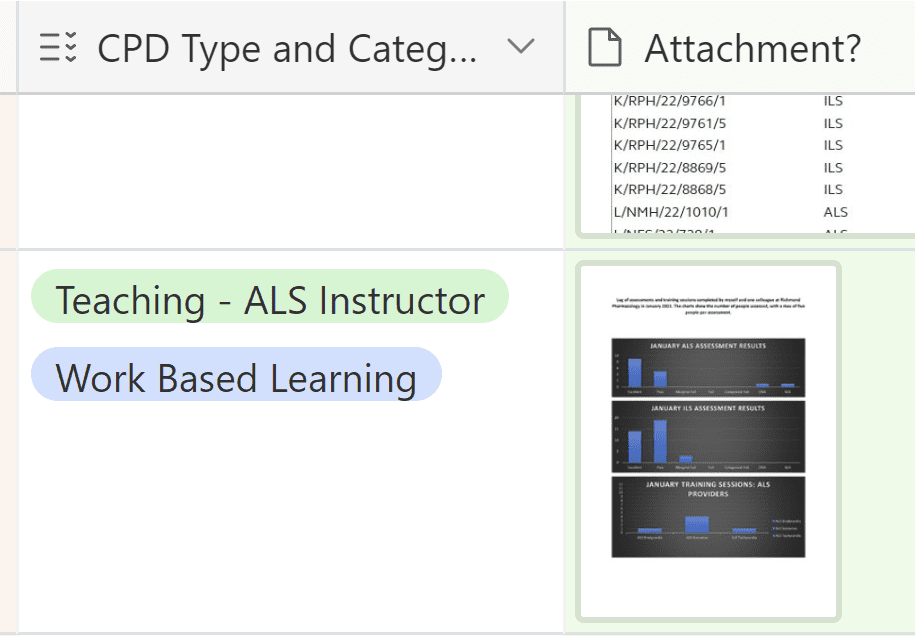
Click on the thumbnail, and print/export. Details, please
The notes here are summarised from:
More details can be found there, including an appendix of a variety of evidence types if you are looking for ideas.
[tabby title=”Detailed Reflections”]
Detailed reflections may be used as evidence – Within the Airtable database, Rolfe et al’s (2001) reflective model is used. But the HCPC don’t prescribe any specific model. You could use any you prefer, including Gibbs or John’s (below).
John’s model:
- Description of the experience
- Reflection
- Influencing factors
- Could I have dealt with it better?
- Learning
- Appendix
- References
Here’s a good pocket book for finding reflective models that might be lesser known but more useful to you:
[tabby title=”Review CPD Prior to Submission”]
Those familiar with the OneNote version of this help file will know that file printouts of 2/3 of the below are available there. In this version, I have added the three references as links. I’ll always recommend reading these before submitting your portfolio as evidence to ensure you understand the process and have been thorough in your preparation.
https://library.myebook.com/MyeBookEM/college-of-paramedics-1/2984/
[tabby title=”Using the templates”]
Here is the full video on how to use v1.6 of the CPD templates:
Don’t forget, there is a calendar in the templates as well, which are available for you to check you haven’t left gaps of 3 or more consecutive months without an explanation. The skills calendar is available so that you can check how often you are completing skills.
For more information about the templates, and to book a 1:1 Teams appointment for additional support, please see this page.
If you are just looking for a printing/exporting guide, please click on the next tab.
[tabby title=”Printing/exporting guide”]
Printing/Exporting
Here’s a basic list of the order to print and export your CPD portfolio in:
- The Cover Page
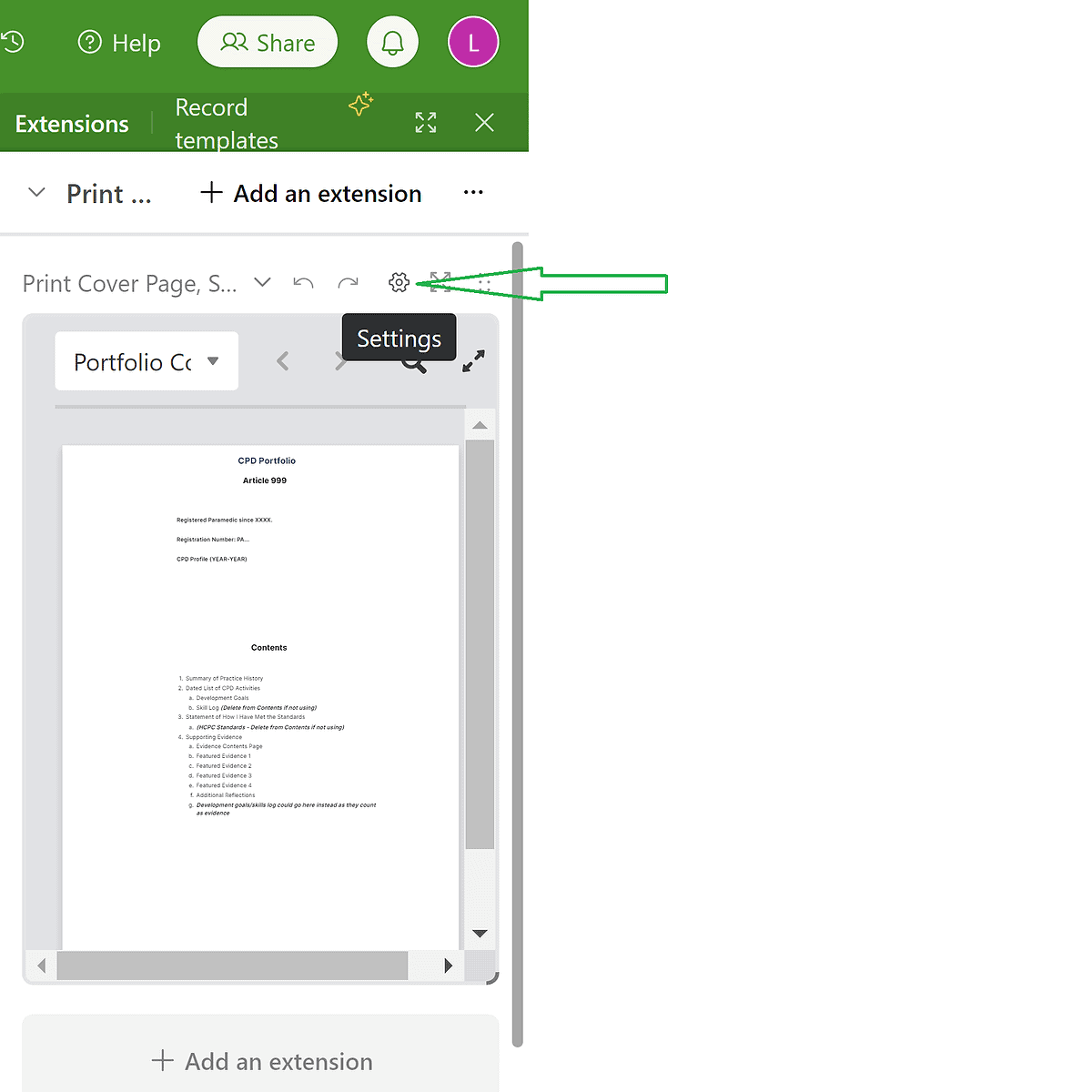
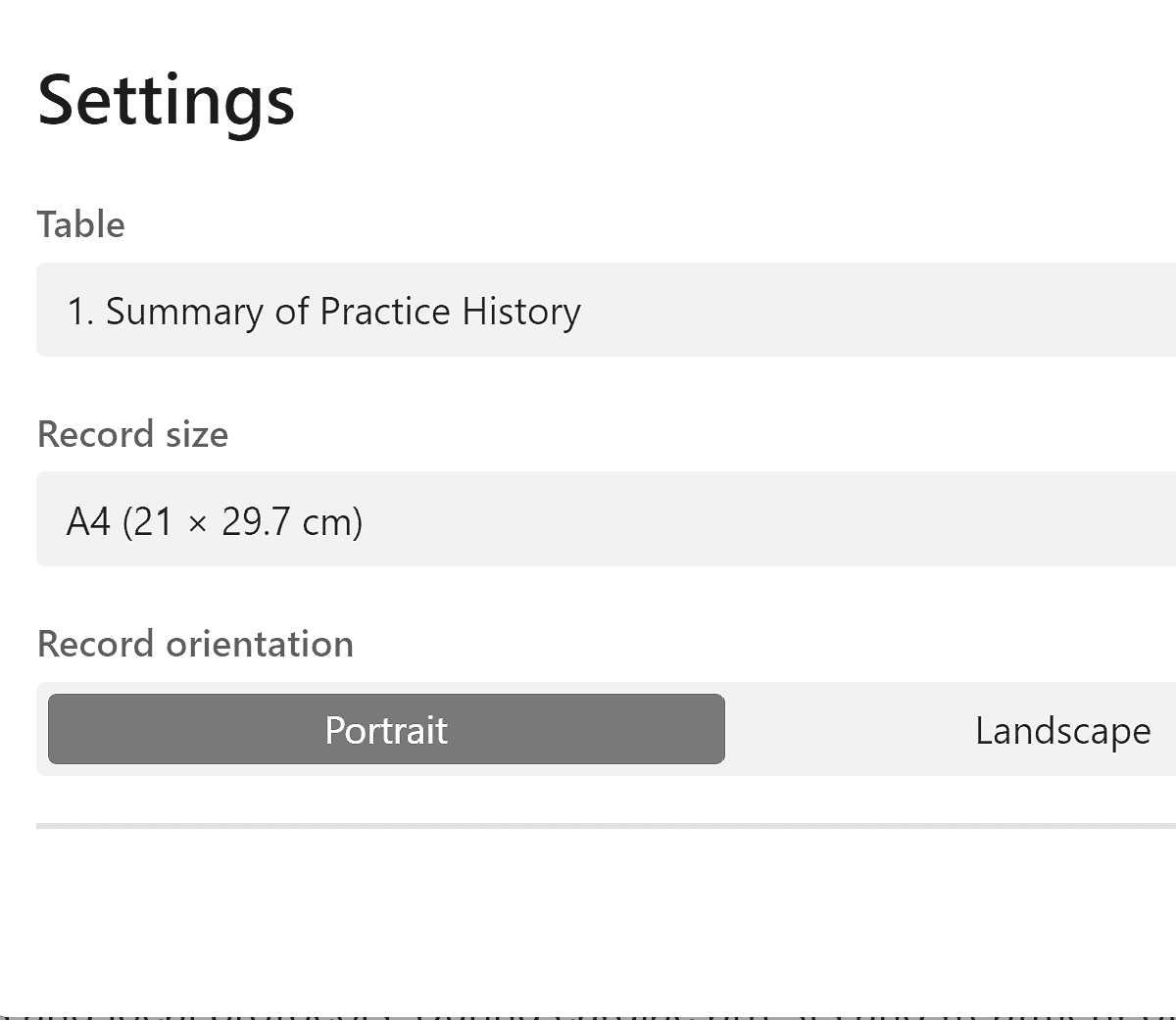
- Print this using the ‘extensions’ tab on the right-hand-side of the page. Ensure the correct table is selected by clicking the settings button and selecting the chosen table:
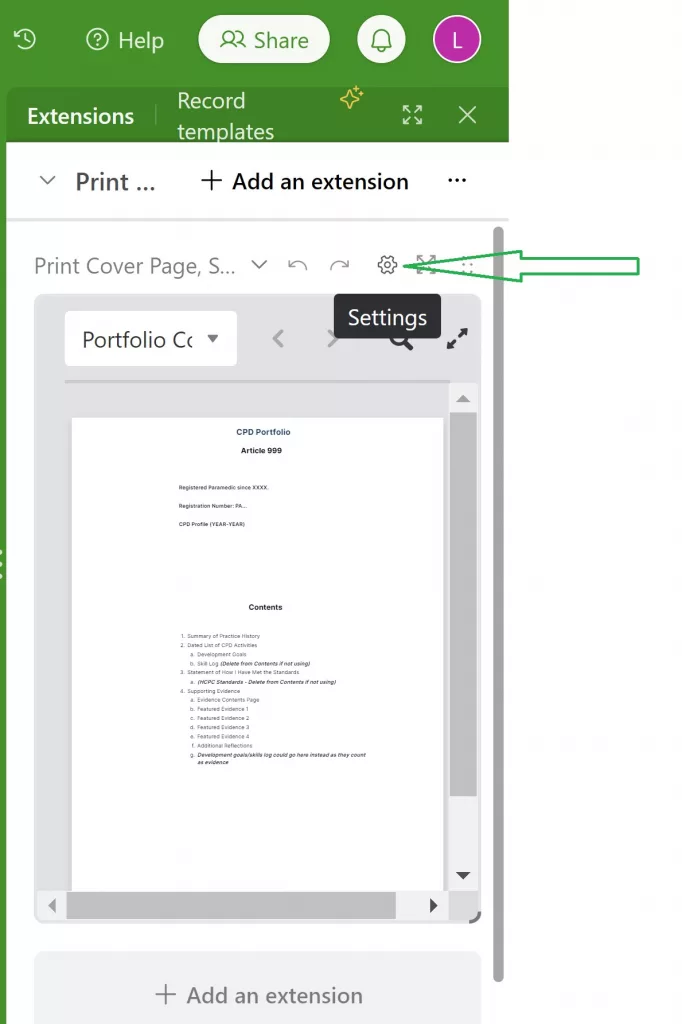
Settings button within the extension tab. 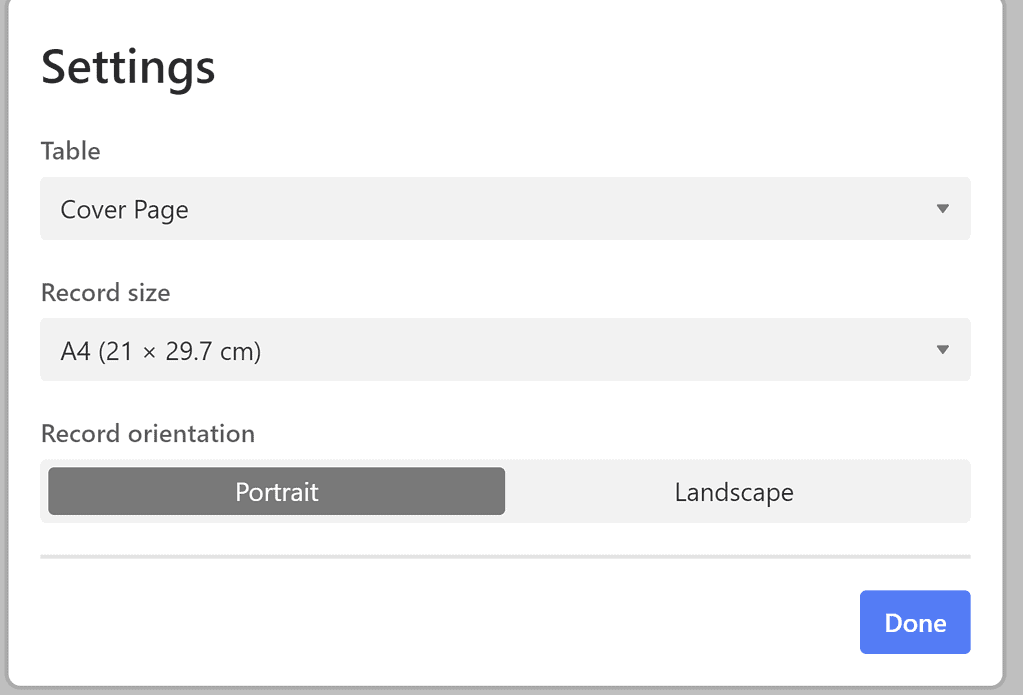
Settings option Click done, then print, then print again. Set your destination as your chosen printer, or print to pdf. Click save, and save this file in a folder on your computer.
2. The Summary of Practice History
This should be printed using the same tool, above. Select from the settings the correct table (1. Summary of Practice History). Repeat the instructions above.
3. The Dated List of CPD Activities
- There are a few things to print here:
- The CPD log
- Evidence List
- Reflections
- Skills
- To print the CPD log, select the table, then select the title, and choose print view from the list:
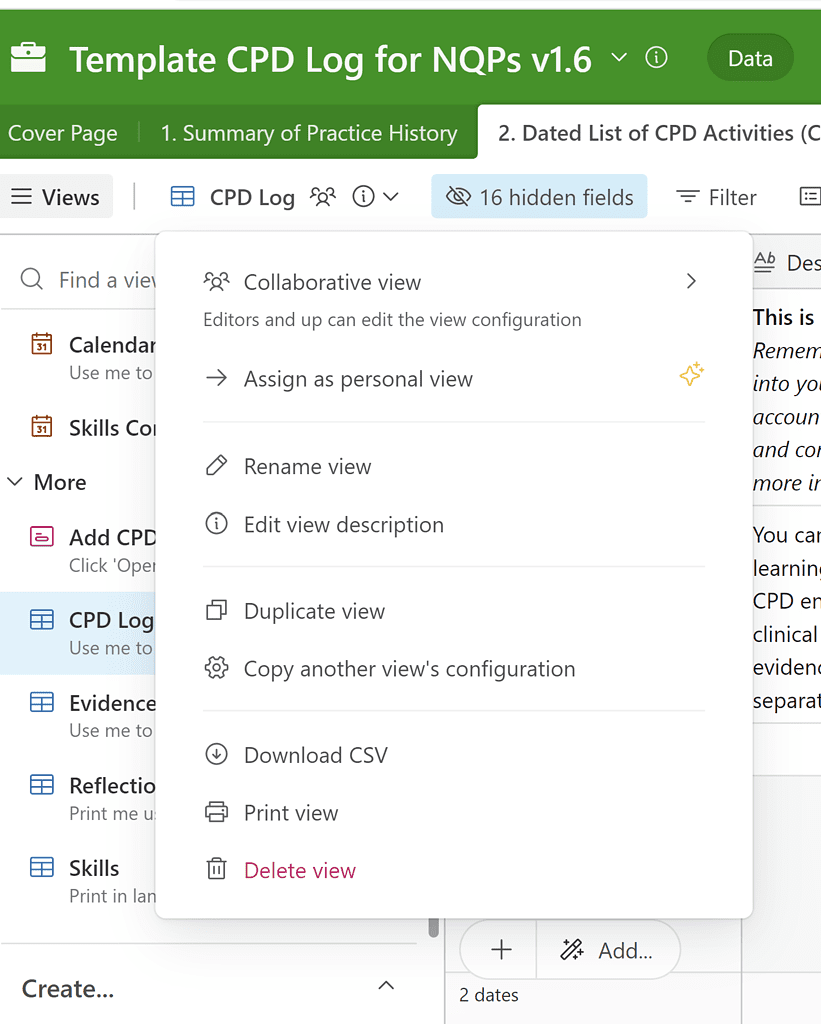
Check the settings show: landscape, actual size, small, and that all other options are turned on. Select print. Choose your printer option – or save to pdf – and print/save. Ensure the ‘headers and footers’ option is turned off in your browser printing settings.
- The evidence list and skills tables prints the same as the above – repeat the instructions
- The reflections table prints using the extension on the right-hand side. Select the settings icon as shown above, then the following:
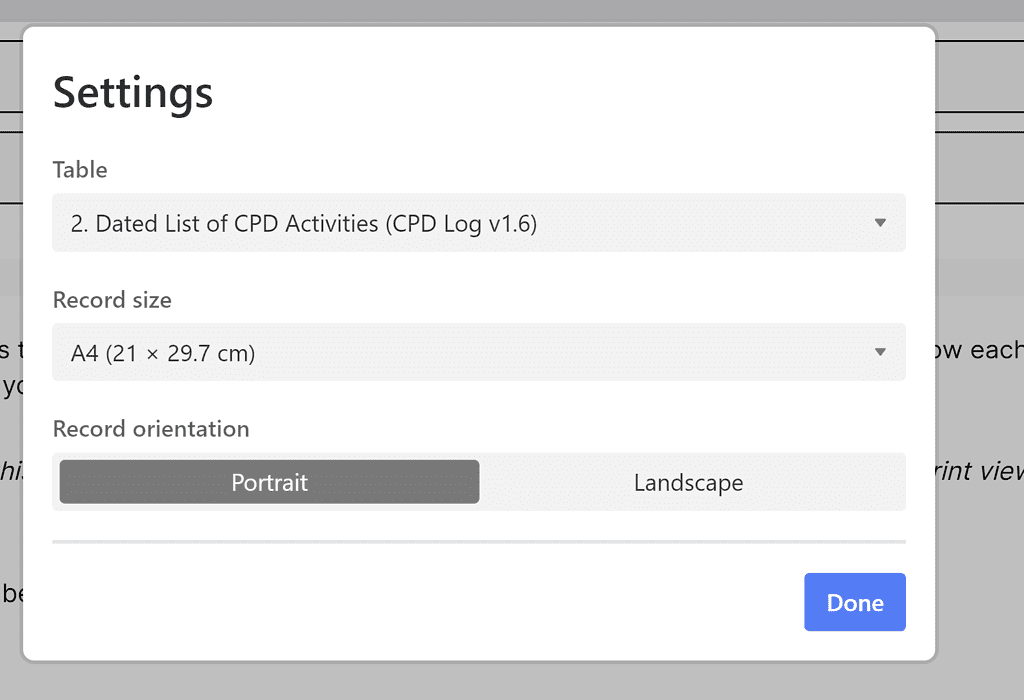
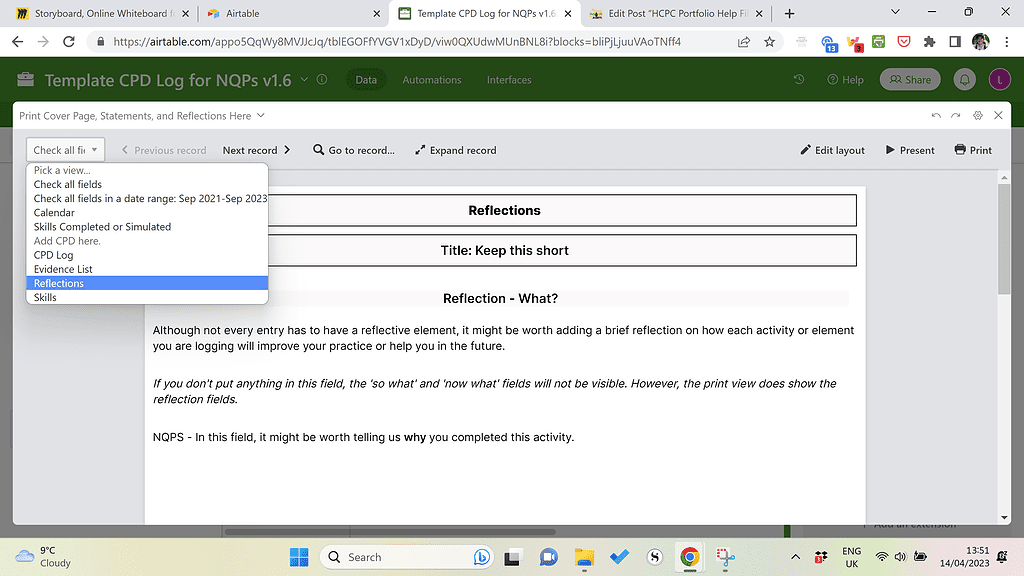
4. Development Goals, NQP Learning Outcomes, and HCPC Standards of Proficiency print the same way the CPD log, evidence list, and skills do. Repeat those instructions above to print these.
5. The Statement of How I Have Met the Standards prints the same way the reflections, cover page, and Summary of Practice History does. Repeat those instructions to print this, ensuring the correct table is selected in the extensions tab.
To summarise, you should end up with 10 PDFs or printed documents if you are printing/exporting every option available. These should consist of:
- 6 that have been printed using the ‘print view’ option, in which you simply print the same table that you see.
- 4 that have been printed using the ‘extensions’ tab on the right-hand side, in which you print 1 page per entry (1 page per reflection, 1 cover page, 1 page for each statement).
Merging the PDFs
To merge your files, please use your favourite merger tool or https://smallpdf.com/, which is a free website/app for Windows and Mac users. Ignore anything on this site that says you need to sign up for this trial. Press the x to get out of any pop-up that insists on this. Please do the following:
- Upload the files to the merge PDF section, and order them accordingly.
- Download this file
- If you would like page numbers in your file, please use the number pages option in the tool menu. To use this, click on it, upload the merged document, allow it to number pages, then download the new document if you are happy with this.
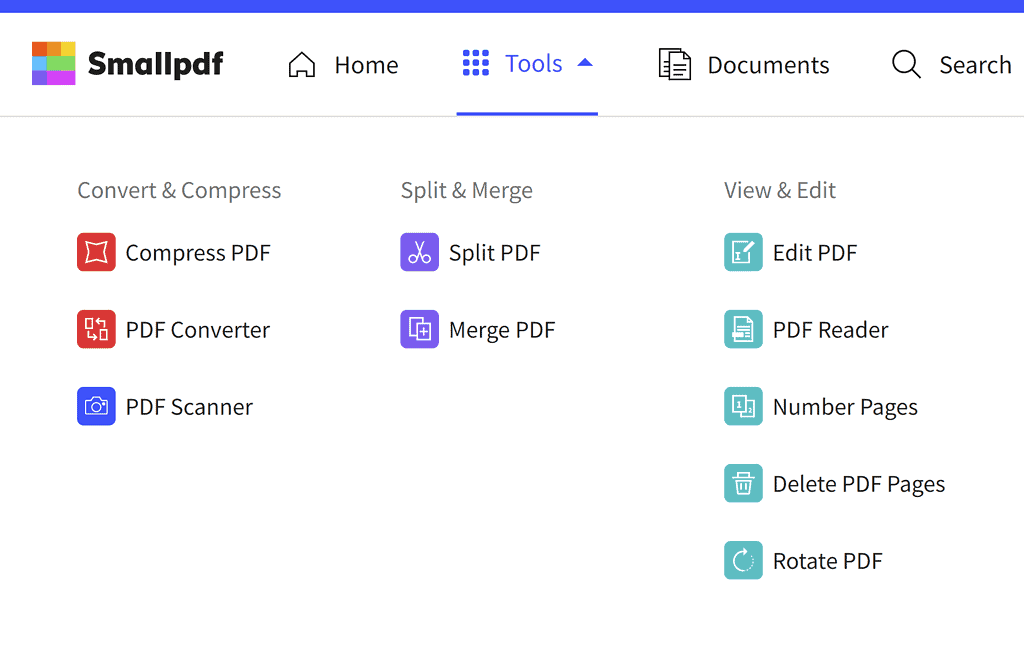
- If you are not happy with the finished version, click on the edit pdf option to delete any blank pages or re-order accordingly.
- When you are happy, download the final version. Try not to experiment with multiple downloads as smallpdf has a daily download limit.
Electronic Signatures?
- If you are an NQP and you would like electronic signatures for your learning outcomes (and your Trust is happy with this), send the completed document to the person marking your portfolio and ask them to sign in the signature column, in the NQP learning outcomes section, using Adobe Acrobat (free). They can then send this completed version back to you. And voila, we have electronic portfolios!
Prefer to Watch This? Here’s a Video:
[tabby title=”Preview the final portfolio”]
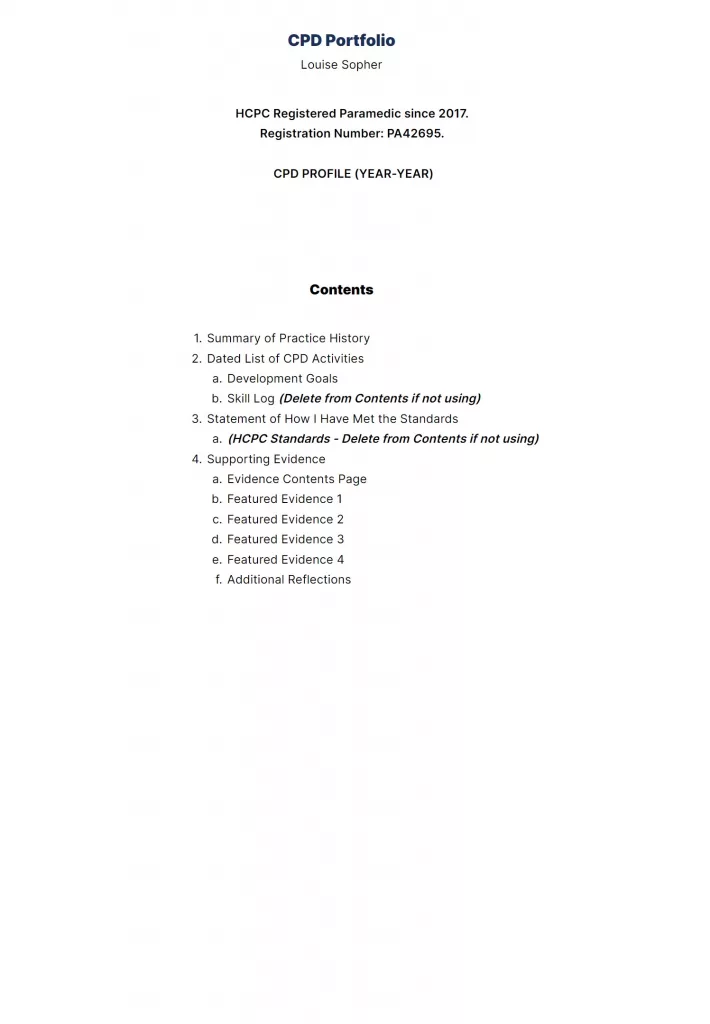
The cover page will print on one A4 page 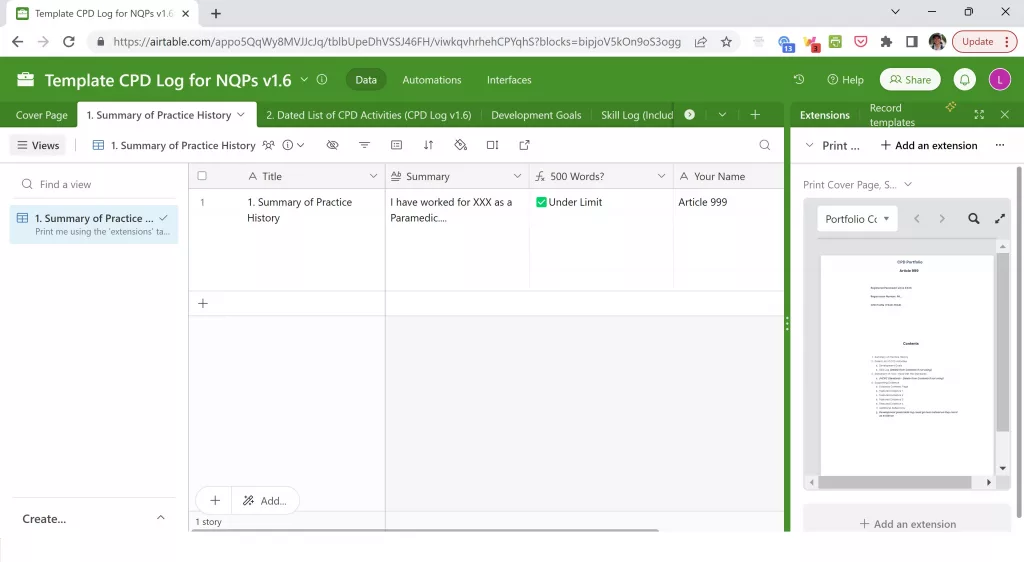
The summary of practice history will print one one A4 page using the extension tab on the right-hand side. Click on the settings icon to navigate between the cover page, summary of practice history, statement of how you have met the standards, and reflections (within the dated list of CPD activities).
Settings button within the extension tab. 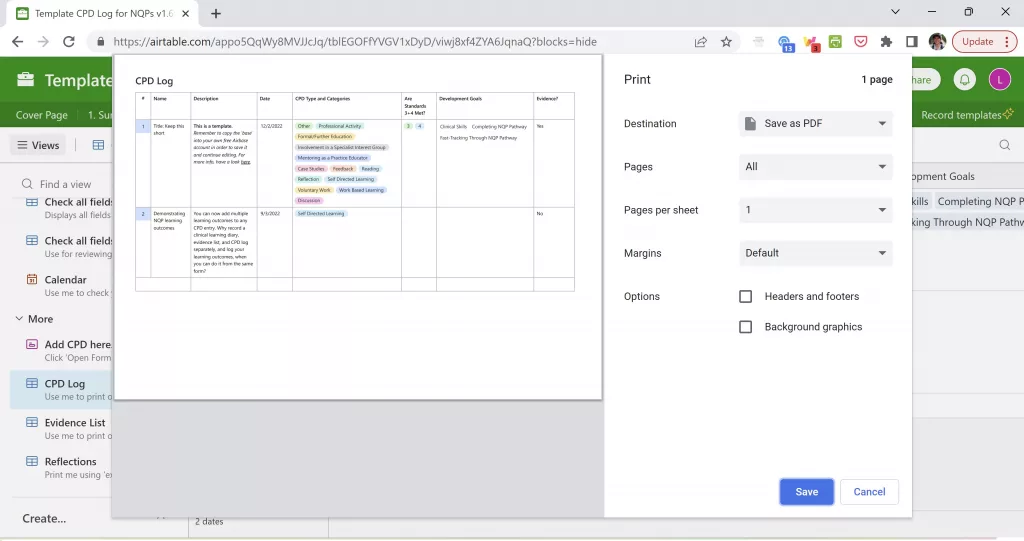
When printed in landscape, this is how the CPD log will look. You can set your destination to ‘save as PDF’ if you would like to export it. The yes/no to evidence column acts as a reference to your evidence list. 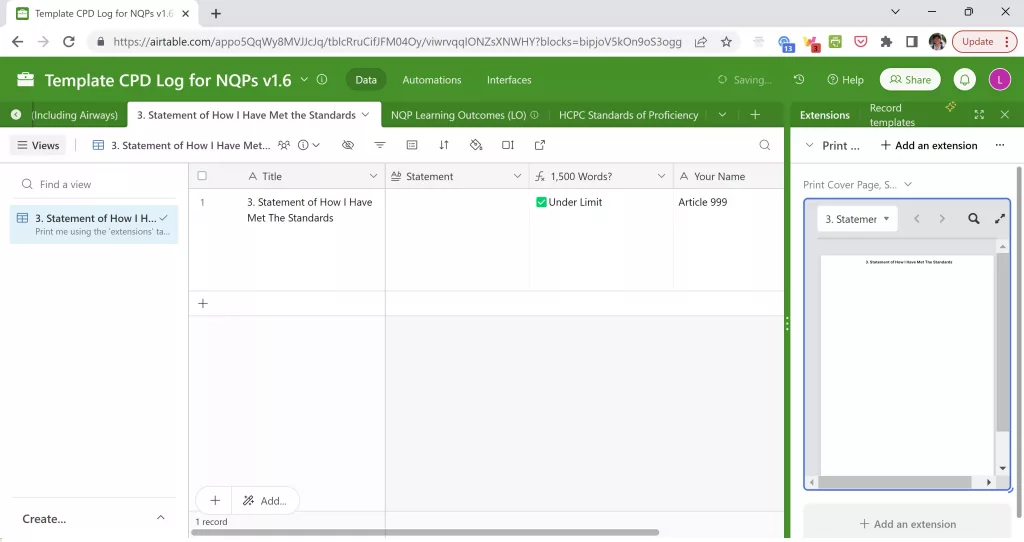
The statement of how you have met the standards will print on one A4 page using the extension tab on the right-hand side. 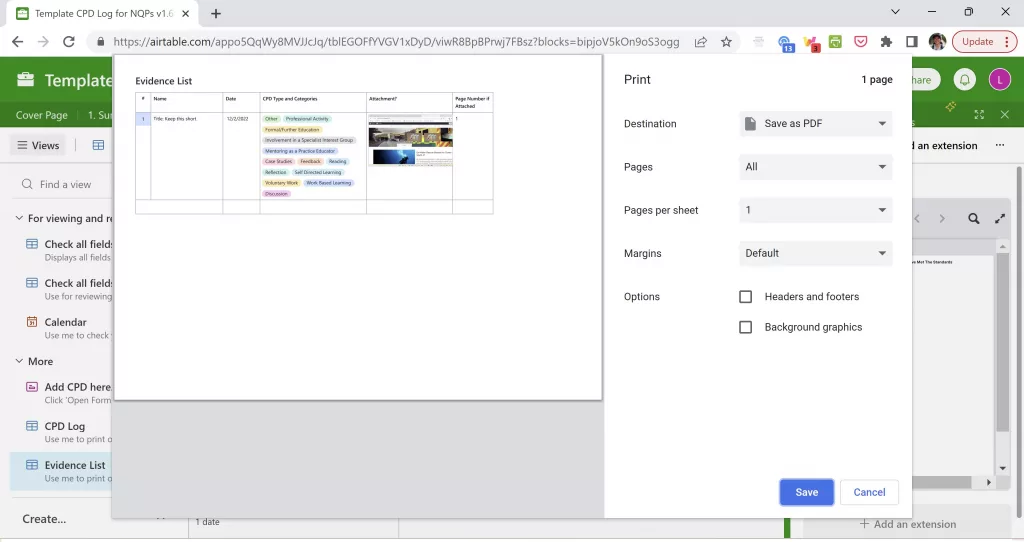
The evidence list can be found within the dated list of CPD activities section and printed in landscape or portrait mode (some adjustments to the size of the columns may be needed when printed in portrait mode). This list will contain a title, date, the CPD categories/type, and a thumbnail of any evidence attached. The page number column is optional and may be used if you choose to print your evidence separately in larger images. Remember, you only need 4-6 pieces of evidence, so it may be useful to feature your evidence in a larger format. Clicking on the image will expand it in a PDF format, which can then be saved/printed. 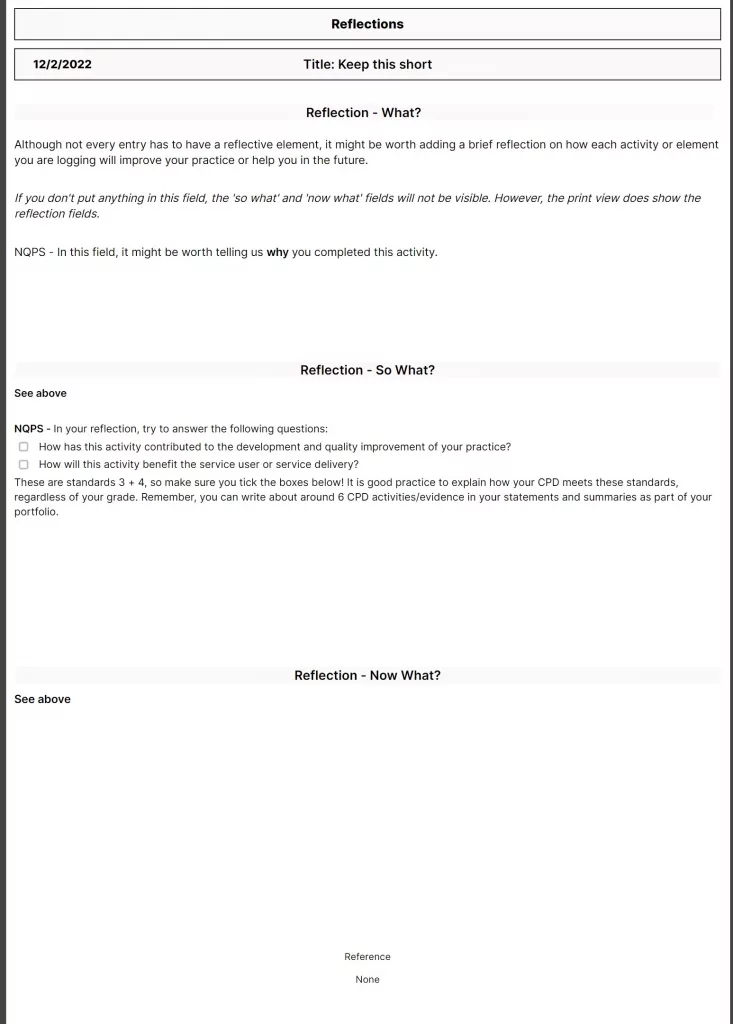
Finally, reflections can be printed using the extensions tab and ensuring your dated list of CPD activities is selected, and the ‘view’ is highlighted to be reflections. These print on one A4 page as shown above. Try to write more than a few lines so it presents nicely – but less than the word count shown in your portfolios. More on this in the video guides (v1.6 guide coming soon). If you are exporting your portfolio to PDF, choose to print, then ‘save as PDF’ as your printer type. You will end up with several PDFs that will need to be merged using your preferred tool. I am now recommending the smallpdf website/app. This app also allows you to number PDF pages and edit the final version (delete pages you don’t want, etc) for free. Downloads have a daily limit, so be sure to only download when you’re happy it’s ready.
If you are a NQP who would like electronic signatures on your portfolio, you can then send your portfolio to your mentor/manager and ask them to fill in the signature column using Adobe Acrobat (free). They can then save and email this final version back to you.
Need help or more info, or want to go ahead and get started? Great, head here for the details.
[tabbyending]
-
Video Guide/Walkthrough to Article 999’s CPD Templates (v1.5)
00:00 start
00:45 where to find the templates
03:50 logging cpd entries
09:29 the details (beginnings)
09:46 cpd log table – overview
10:18 printing or exporting to pdf your basic log
11:56 evidence list table – overview & printing/exporting
14:18 reflections table – overview and printing/exporting (use of the ‘extensions’ tab)
15:58 viewing and reviewing (not printing) – checking the word count of your reflections
17:49 how to display records within a specific date range and apply this range to the tables you want to print/export
19:16 the calendar
19:48 nqp learning outcome table – checking/adding/editing/printing/exporting/another way of logging
22:38 development goals table – adding/editing/printing/exporting/another way of logging
23:37 skill log – adding/editing/printing/exporting/using the calendar/another way of logging
24:20 hcpc standards of proficiency 2023 – checking/adding/editing/printing/exporting/another way of logging
27:00 additional features – visual data
27:45 additional free support – details. Note: Teams 1:1 support is now a paid service of a one-off fee, set at £15. Support for customisation to ensure the template meets Trust requirements will continue to be offered for free.
Head here for the links.
Not convinced? Have a look at 10 reasons to use the templates.